








Installation Manual
Q16 Outlet Manager
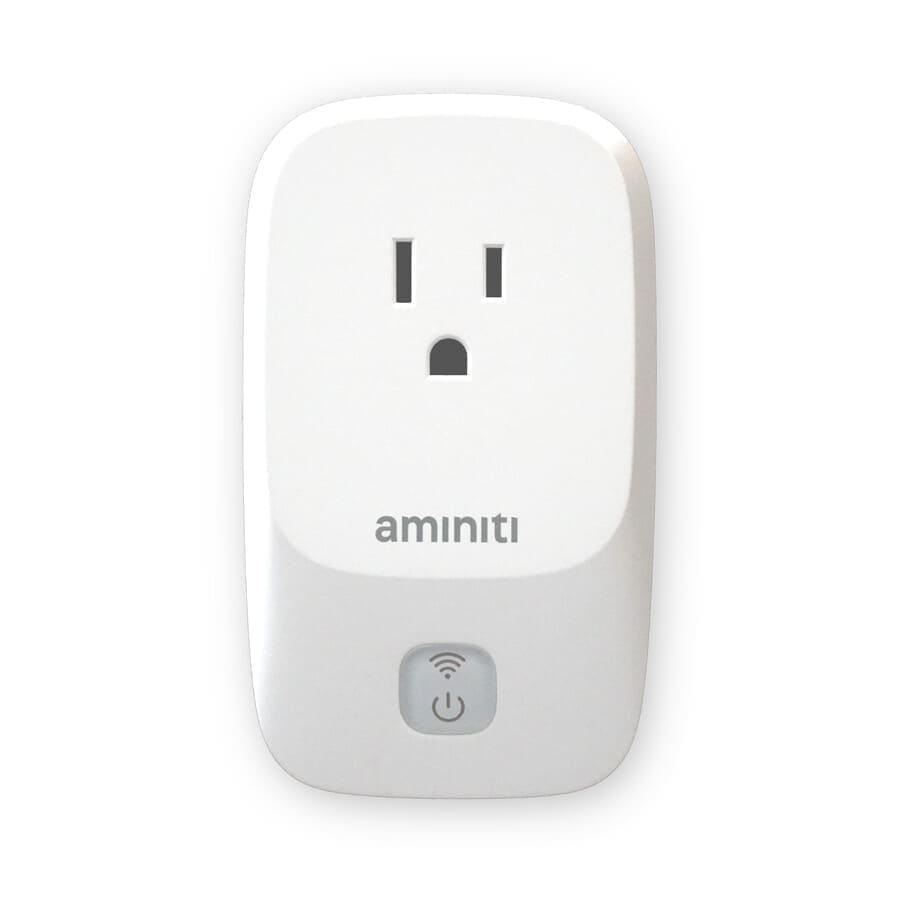
Set up, configure, and operate the Aminiti Q16 plug-in Outlet Manager.
Ways to use Aminiti
Aminiti gives you a lot of flexibility. Here are a few main ways to use Aminiti:
Control Access to an Electrical Outlet or Device
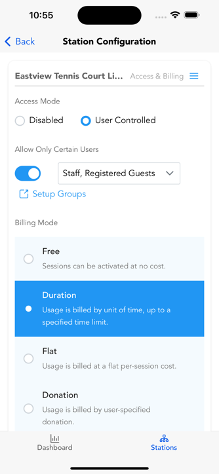
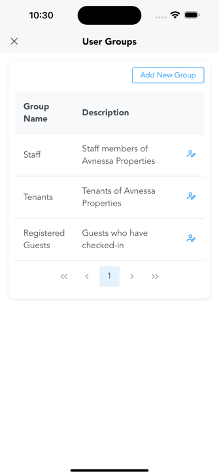
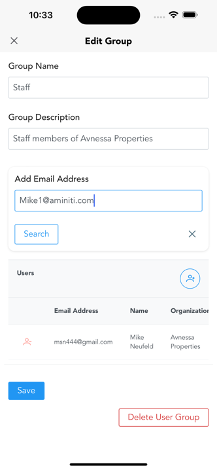
You can create one or more groups of users and select which groups have access to your station. To do this:
- Set the Access Mode to User Controlled.
- Enable Allow Only Certain Users.
- Create a Group and select it to give its members access to your station.
Create a pay-per-use electrical outlet or device
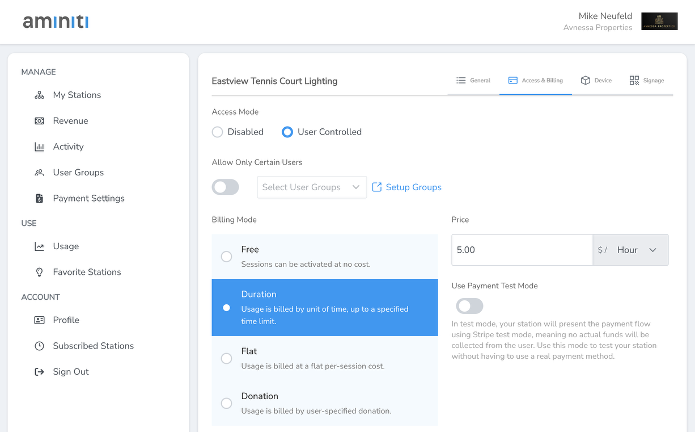
You can set up your station to be activated by credit card payment or with Apple Pay or Google Pay. Select User Controlled as the Access Mode.
Then, set the Billing Mode. This can be Duration (by hour or minute), Flat (fixed price per session), or Donation (user picks a price). Set the Price and Tax Settings, if required. You may initially set Use Payment Test Mode to test the station without needing to use a real payment method.
Bill a tenant or other individual for all usage
If your station is going to be used by just one user and you want to bill that user monthly for all usage, select Usage Plan as the Access Mode.
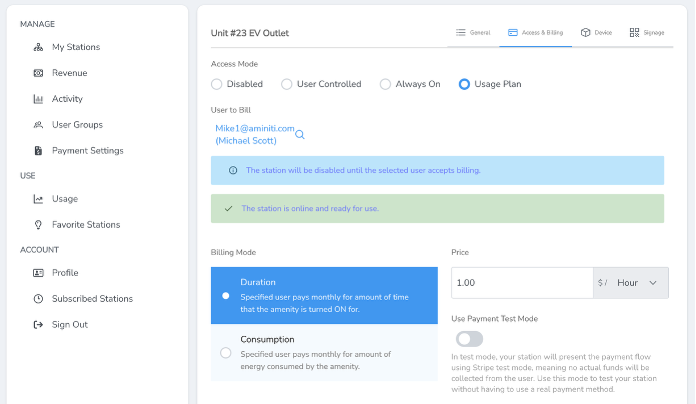
Usage Plan stations bill by Duration: the user is billed for time that the station is detected to be ON. This threshold is fixed at 40 watts.
You'll need to enter the email address of the user you want to bill. If the user does not have an Aminiti account already, they'll be invited to join.
Once the selected user signs in, they'll see the station under their Subscribed Stations, with a status of Pending. The user must agree to the Usage Plan you've configured and provide a payment method.
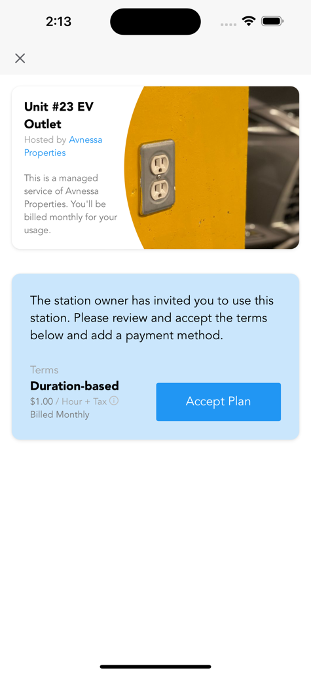
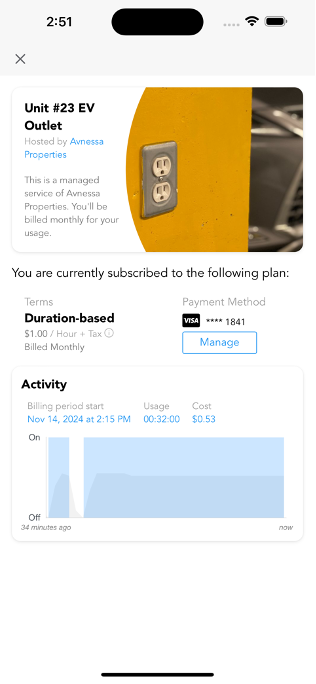
Once the user accepts the plan and provides a payment method, they'll be able to view their usage and costs at any time.
The Aminiti App
You'll need the Aminiti mobile app to fully configure your Aminiti device. Download it from the iOS App Store or Google Play Store.
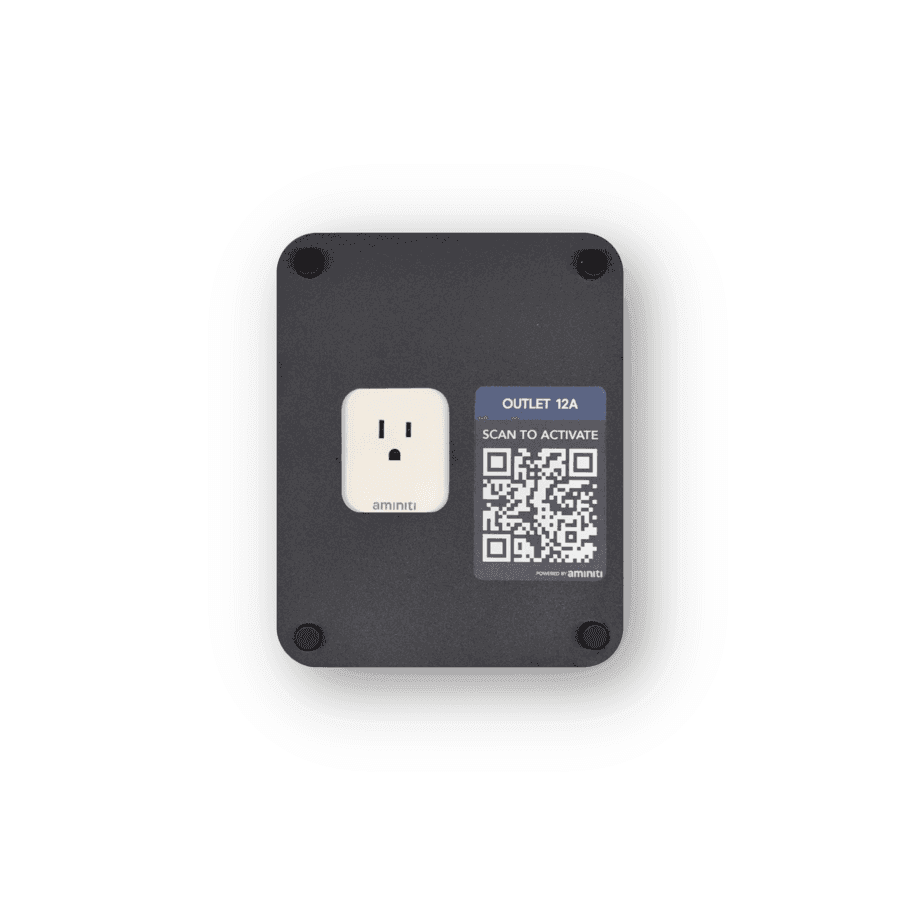
Once you sign up for an Aminiti account, navigate to Host Tools in the main menu. This is where you can add and configure an Aminiti station. You can also access this by simply scanning the QR on the device using your Camera app.
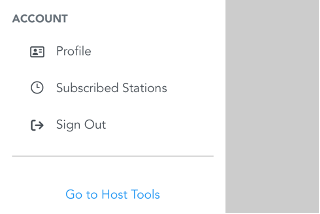
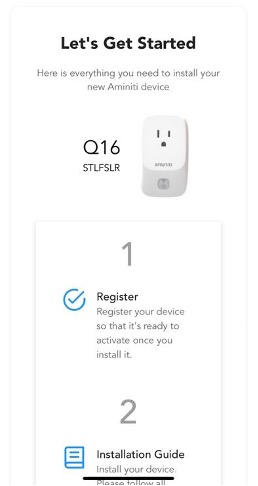
Adding an Aminiti Device
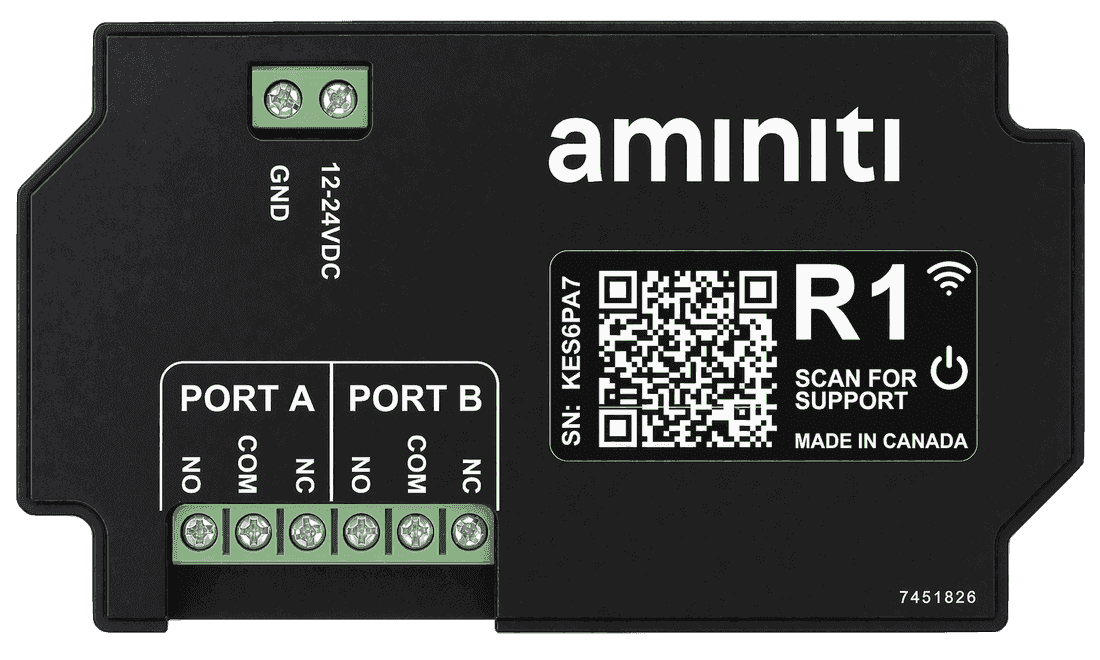
Simply use your smartphone's camera app to scan the Device Label located on your new Aminiti device.
Or tap Add Aminiti Device in the Aminiti mobile app.
Configuring a Station
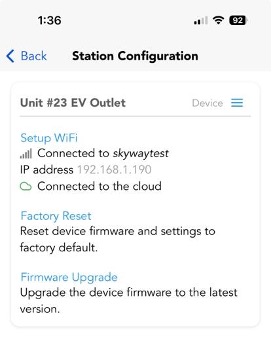
General settings include the station name and the name of your organization. Provide an image to easily identify your station, and a greeting note that users will see. These will all help your users find, identify, and trust your stations.
Access and Billing
These settings allow you to control access to your station, how it is billed, and whether time limits or schedules are applied. Most of these settings are shown in Ways to use Aminiti.
Device
The Device panel allows you to connect your Aminiti device to a Wi-Fi network. This is important for Usage Plan operation, so the device can provide usage information in real-time.
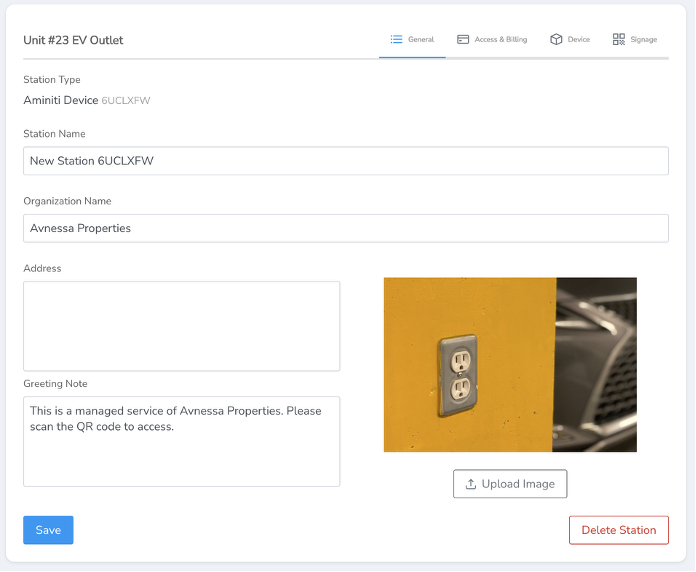
You can upgrade your device firmware from the Device panel. You'll need to stand within 10 feet of the device to initiate a firmware upgrade.
If your device has become unresponsive, you can perform a Factory Reset of the device from the Device panel. This will reset all settings and restore the device to its original settings. You'll need to stand within 10 feet of the device to perform a Factory Reset.
Contact Support
We're here to help you get the most of your Aminiti device. Visit https://www.aminiti.com/support to find more information or contact our support team.
Safety Information
Warnings
IMPORTANT! READ THIS ENTIRE DOCUMENT BEFORE INSTALLING OR USING YOUR AMINITI DEVICE. FAILURE TO DO SO OR TO FOLLOW ANY OF THE INSTRUCTIONS AND WARNINGS IN THIS DOCUMENT CAN RESULT IN FIRE, ELECTRICAL SHOCK, SERIOUS INJURY OR DEATH. YOUR AMINITI DEVICE MUST BE INSTALLED BY A QUALIFIED ELECTRICIAN, AND IN ACCORDANCE WITH LOCAL ELECTRICAL CODES AND ORDINANCES.
Do not install or use your Aminiti device near flammable, explosive, or combustible materials, chemicals, or vapors. Turn off input power at the circuit breaker before installing or maintaining your Aminiti device. Use your Aminiti device only within the specified operating parameters. Stop using and do not use your Aminiti device if it is defective, appears cracked, damaged, or fails to operate. Do not attempt to open, disassemble, repair, tamper with, or modify your Aminiti device. Your Aminiti device is not user serviceable. Contact Aminiti Technologies for any service or replacement.
Do not use your Aminiti device in wet locations, or connect other devices to your Aminiti device in wet locations. Do not insert foreign objects into any part of your Aminiti device.
Regulatory Compliance Information
FCC Declaration of Conformity
This device complies with Part 15 of the FCC rules. Operation is subject to the following two conditions: (1) This device may not cause harmful interference, and (2) this device must accept any interference received, including interference that may cause undesired operation.
Radio and television interference
The equipment described in this manual has been designed to protect against Radio Frequency Interference (RFI). However, there are some instances where high powered radio signals or nearby RF-producing equipment (such as digital phones, RF communications equipment, etc.) could affect operations. If interference to your Aminiti device is suspected, relocate or turn off nearby electrical appliances before contacting Aminiti Technologies for assistance.
Important! Changes or modifications to this product not authorized by Aminiti Technologies could void the FCC compliance.